







xChart by Leverate: What Broker-Controlled Chart Trading Changes for Operators
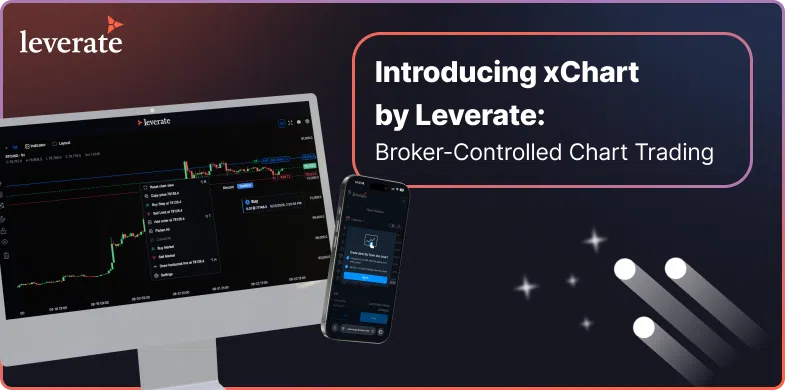
We have just deployed xChart, our new charting and trade-from-chart engine, across the Leverate platform on desktop and mobile. It is live now as the default chart engine for every broker on the platform.
xChart is a full rebuild rather than an upgrade to what came before, and it was built inside the trading platform rather than mounted on top of it. That second point is the one worth spending an article on, because it is the reason xChart can do things a charting layer structurally cannot, and it is why the capability list below reads differently once you know where the chart is sitting.
What “Native” Actually Buys You
Most charting is a rendering surface. It receives a price feed, draws it, and hands everything else back to the platform underneath. That is a perfectly good description of a charting library, and there are excellent ones. It is not a description of xChart.
When a chart lives outside the platform, connecting it to trading means building a bridge. The bridge translates between the chart’s coordinate space and the order system, and every compromise in a chart-trading experience traces back to something the bridge could not carry. Remove the bridge and a set of constraints disappear at once.
There is one order path, not two. A chart order in xChart is not a chart order that gets converted into a platform order. It is a platform order that happened to originate on a chart. It travels the same route, hits the same validation, and passes the same risk checks as an order placed from anywhere else in the platform. Nothing is bolted on, so there is nothing extra to monitor, reconcile or account for.
Validation happens before the order leaves, not after. Stop, limit, Stop Loss and Take Profit levels are each checked against the correct reference price at the moment of placement, and an invalid level is blocked in place with the reason shown beside the order. The trader is corrected on the chart rather than rejected a second later by a system they cannot see. On an open position the valid range is measured from the current market price, which is why a trader sitting in profit can pull a stop past their own entry to lock in gains. That is a legitimate move, and cruder validation rules tend to block it and then generate a support ticket about it.
The risk engine can intervene mid-flight. For Prop Suite accounts there is no separate chart-trading screen and no parallel logic. The risk engine evaluates every chart action and can reject any of them, including while an order is in flight, with the rejection surfaced on the chart itself in the standard way. Chart trading becomes available to funded traders without opening a gap in the challenge rules, which is usually the reason it stays switched off.
The chart knows what an account group is. A third-party charting layer has no concept of a broker’s account structure. xChart does, because it is reading the same account record as the rest of the platform. That is what makes confirmation behaviour configurable per account group from the Broker Portal, and what lets a trader’s own preference be permitted or withheld depending on which group they sit in.
Positions are read, not polled. Every open position appears automatically on every chart showing that instrument, whether it was opened from the chart or from anywhere else in the platform, carrying entry price, live profit and loss, and Stop Loss and Take Profit levels where set. Change a level on one chart and it reflects immediately on the others. In a multi-chart layout, exposure is visible in every relevant panel at once. Positions cannot be hidden, so it stays that way.
Routing is a platform decision, not a trader decision. Orders reach the correct trading engine according to the instrument. The trader never selects a platform, and never sees that there was one to select.
State lives on the account. Theme, favourite timeframes, display settings and the trader’s confirmation preference are stored against the account and apply on any device they log in from, while the working layout saves to the device in use. Drawings persist per chart through a page refresh, a new session, a timeframe change and a layout change. Nothing is saved manually because nothing needs to be.
None of these are charting features. They are platform features that happen to be expressed on a chart, and they are available because the chart is not a guest.

What Brokers Gain
Chart trading you can actually switch on. For a lot of operators, the calculation has been simple: traders want to trade from the chart, and enabling it introduces execution and risk-management complexity that nobody wants to own. xChart removes the reason to say no. Every action runs the checks already in place: pending orders, market orders, bulk close, a stop adjustment.
Speed as a setting, not a policy. Confirmation mode is chosen per account group in the Broker Portal: confirmation, single click or double click. New accounts start with confirmation on, and traders can only enable faster behaviour where the broker has allowed it. A cautious retail book and an active professional book can run at different speeds without touching the platform build, which means offering speed to the segment that wants it is no longer an all-or-nothing decision.
Bulk actions with a deliberately short reach. Close All and Cancel All carry the most incident risk of anything on a chart, so their scope is narrow by design: both apply only to the active account and the instrument on the active chart, never to another account and never to another instrument. Close All locks until the platform confirms receipt, so a second press cannot double-send. Partly filled orders are handled correctly, with the filled portion closing at market and the working part cancelled. Both grey out with an explanation when there is nothing to act on, and both become unavailable when the market for that instrument is closed.
One trading experience across a hybrid stack. Because routing is automatic, a brokerage running two engines presents one experience to its clients regardless of what they trade.
A chart that carries your identity, in your markets. The interface translates in full, with number, date and time formats following the selected locale, and mirrors for right-to-left languages while OHLC values stay on the left. It looks like your platform because it is your platform.
No forced migration. xChart is the default chart engine, and where TradingView is also enabled the trader keeps a toggle between the two. Traders with established habits do not lose them, which removes the usual friction from a charting change.
What Traders Gain
The trader-facing case is easier to state: everything you do to a position now happens where you were already looking.
Pick a price on the chart. Entry, Stop Loss and Take Profit are positioned by dragging their lines, with the profit side shading green and the loss side red as they move, so the shape of the trade, and its risk against its reward, is visible before anything is sent. The order menu adapts to whether the selected price sits above or below the market, and the check runs at the moment of selection, so a price that crosses the market while the menu is open still produces the correct order type instead of an error.
Once a position is open it lives on the chart. Live profit and loss on the line, levels shown where they are set, and controls on the line itself to close the position or clear a level. A working pending order carries its own cancel control.
Underneath sits a full analysis surface: six chart types, nine timeframes from one minute to one month, eleven drawing tools including Fibonacci retracement and extension, and an indicator library grouped into Trend, Momentum, Volume and Volatility with no limit on how many can sit on a single chart. Desktop offers more than ten layouts up to eight charts on screen, each holding its own instrument, timeframe, indicators, drawings and zoom position entirely independently of the others. Light and dark themes switch instantly with no loss of chart state.

The Mobile Chart Is the Same Chart
This is the part worth dwelling on, because mobile charting is usually where a platform quietly gives up.
The common outcome is one of three things: a desktop grid shrunk until it is unreadable, a reduced build with fewer tools and no trading, or a web view that fights the phone’s own gestures. Each of those tells the trader who works primarily from a handset, often the most active segment of a client base, that they are using the lesser version of the product.
xChart on mobile is the same chart, rebuilt for touch rather than scaled down to fit.
[TABLE: Desktop and mobile]
| Capability | Desktop | Mobile |
|---|---|---|
| Trade from chart | Full | Full |
| Chart types / timeframes / drawing tools | 6 / 9 / 11 | 6 / 9 / 11 |
| Indicator groups | 4 | 4 |
| Charts on screen | Up to 8, 10+ layouts | Up to 4, swipe navigation |
| Drag Entry, Stop Loss, Take Profit | Yes | Yes, enlarged touch targets |
| Positions on chart with live P&L | Yes | Yes |
| Close All and Cancel All | Yes | Yes, as labelled buttons |
| Order ticket | Docked panel | Full screen or bottom sheet |
| Settings follow the account | Yes | Yes |
The differences that do exist are deliberate interface decisions rather than reductions. Rather than compressing eight charts into a phone screen, one chart fills the display at a time, with swipe navigation, pagination dots and a thumbnail strip for jumping straight to any chart. Order and level lines carry enlarged touch targets, and gesture handling is written so that dragging a stop never scrolls the page, zooms the chart or switches to a different one. That is the genuinely hard engineering problem in touch charting, and the one that usually gets solved by disabling the feature instead.
Trade actions open in a bottom drawer. Close All and Cancel All appear as clearly labelled buttons rather than gestures a trader has to discover. The order ticket opens as a full-screen view or a bottom sheet instead of a docked panel squeezed onto a handset. Favourite timeframes appear as a horizontally scrollable row of chips. A one-time tip explains the press-and-hold gesture the first time a trader opens the chart, then never appears again.
And because settings follow the account, a trader who spends their morning building a view on a desktop finds their theme, favourite timeframes and display settings already applied when they open their phone at lunchtime.

Rolling It Out
Decide the confirmation policy before enabling, not after. The Broker Portal setting is per account group, which only helps if those groups already reflect risk appetite. Most operators will want confirmation on for newer retail accounts and faster behaviour available to a professional or high-activity group. Setting it deliberately at rollout is far less visible than walking it back later.
Demonstrate mobile rather than mentioning it. In markets where most of a client base trades from a phone, parity is the differentiating claim, and it lands when someone watches a stop being dragged on a handset without the page scrolling.
Lead with the architecture in commercial conversations. Six chart types is a specification, and every charting product has one. A chart whose orders run through your existing risk checks, whose speed you set per account group, and which behaves identically across both engines is an operational position, and that is the version that survives a procurement review.
See xChart on Your Platform
xChart is live now on desktop and mobile as the default chart engine. If you would like to see how it behaves on your own account structure, including how confirmation modes map to your existing account groups, get in touch and we will walk you through it.
Contact us to learn more about xChart
FAQ
Q: Does xChart replace TradingView on my platform?
A: No. xChart is the default chart engine, and where TradingView is also enabled, traders keep a toggle to switch between the two.
Q: Do chart orders bypass my risk checks?
A: No. Every action from the chart, including market orders and bulk close, runs the same order path and risk checks as an order placed anywhere else in the platform.
Q: Can I control how fast traders can act from the chart?
A: Yes. Confirmation mode is set per account group in the Broker Portal: confirmation, single click or double click. New accounts default to confirmation on, and traders can only enable faster behaviour where you allow it.
Q: Is the mobile version limited compared with desktop?
A: No. The full trading feature set is available on mobile with the same chart types, timeframes, drawing tools and indicator groups. The differences are interface decisions for touch, such as swipe navigation between charts rather than a compressed grid.
Q: How does xChart handle prop accounts?
A: There is no separate screen. The risk engine evaluates every chart action and can reject any of them, including while an order is in flight, with rejections shown to the trader in the standard way.
Q: Do traders have to save their layouts and drawings?
A: No. Drawings persist per chart across refreshes, sessions, timeframe changes and layout changes. Theme, favourite timeframes and display settings follow the account across devices; the working layout saves to the device in use.
Disclaimer:
This content is based on multiple sources and is provided for educational purposes only. It does not constitute financial, legal, or investment advice.